
1
Upload Your Photo
Drop any JPG or PNG into the uploader within the embedded interface.
Use a limited preview to clean noise, balance tone, and export sharper images. Upload a file to start, and every render stays private.
Click or drop to upload
JPG/PNG/WebP · up to 10MB
Scale
Upscale factor: 4x (1-4).
Upload, click enhance, and preview a cleaner result.
Slide to see how clarity and contrast without sending files to a server. This ai image enhancer free preview keeps product shots, food photos, and travel frames private while you decide the final export.
Auto, denoise, and upscale modes that enhance photo detail without halos.
On-device image enhancer pipeline that satisfies client privacy and fast feedback loops.
Export-ready renders for Shopify, Keynote, or social drops—no extra plugins.
HubVanta blends a browser-first photo enhancer with adaptive models. It brightens low light frames, recovers motion blur, and keeps skin natural.marketers can enhance photo batches quickly without plugins.
01
Ecommerce: browser enhancer keeps packaging crisp.
02
Restoration: ai photo enhancer free revives portraits without glare.
03
Social: pic enhancer preps thumbnails that stay sharp.
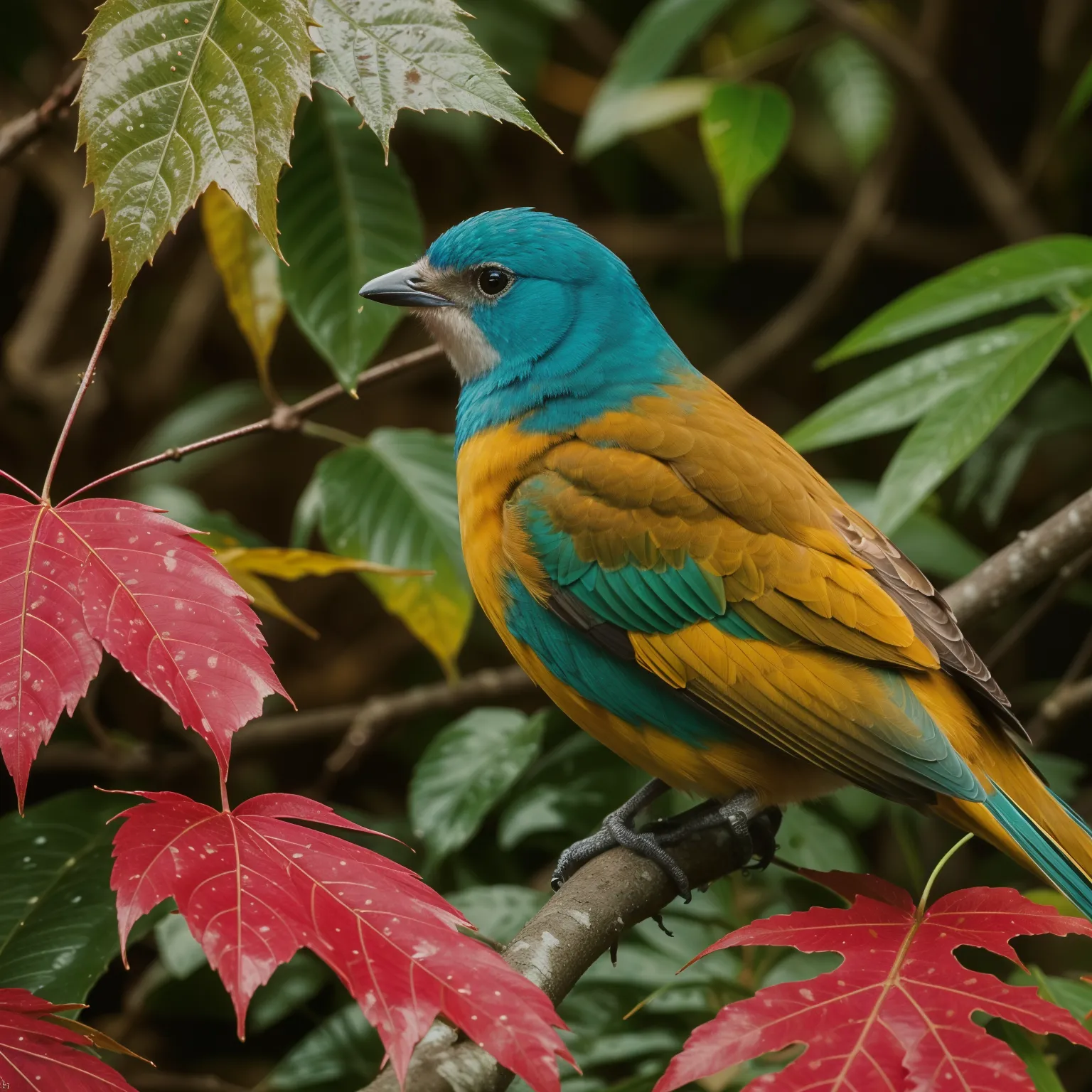
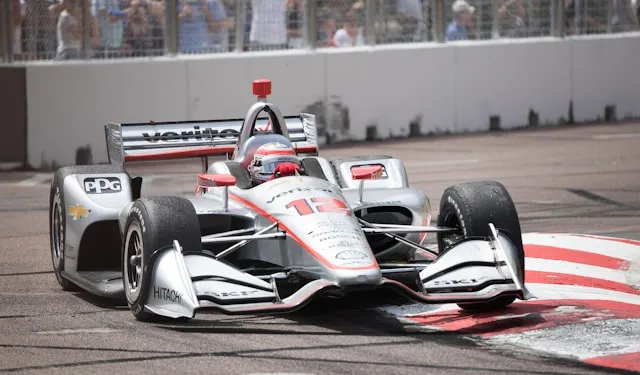
Start in auto, then enhance image with gentle denoise.
Use 2x or 4x upscale when you enhance photo prints.
Keep assets local; the ai image enhancer free run never uploads.
Bookmark this private workspace when you need a fast, private pic enhancer for campaigns.
Enhance photoDrop any JPG or PNG into the uploader within the embedded interface.
Select upscale, denoise, sharpen, or auto enhance and fine-tune sliders.
Preview the AI image enhancer result and export the upgraded file instantly.
Teams choose HubVanta when they need measurable lifts—better clarity, faster edits, higher engagement, and leaner budgets.
lifts shadows, restores texture, and keeps skin natural so every pass feels studio-grade while you enhance photo sharpness without plastic blur.
Our editor balances highlights, fixes color cast, and acts as a pic enhancer that removes noise when you enhance image clarity for products or portraits.
Keeps every upload local to the browser. No server copies, just a fast ai photo enhancer free pipeline that pairs with an on-device detail stack.
99%
Image quality improvement
4x
Faster editing workflow
85%
Higher engagement on enhanced images
70%
Cost savings on photo retouching
Answers to the most common questions.
New registered users get 40 starter credits after signing in. Each enhancement uses credits tied to your account, and plans include monthly credits for HubVanta AI tools.
Portraits, product shots, scans, and screenshots all respond well. The photo enhancer sharpens detail, fixes banding, and cleans noise before export.
No. Previews stay in this session and clear when you close the tab.
Absolutely. Outputs are yours for ads, social, and decks without extra licenses.
Each enhancement costs 20 credits.
Upload JPG, PNG, or WebP up to 10 MB. Larger files or RAW formats should be converted before uploading.
Previews stay in your browser session and are cleared when you close the tab. When server-side enhancement is enabled, files are processed securely and never stored in public galleries.
Use a limited preview to clean noise, balance tone, and export sharper images. Upload a file to start, and every render stays private.
Go to photo enhancer