1
Upload your image
Use a clear PNG, JPG, or WEBP photo where the object is visible.
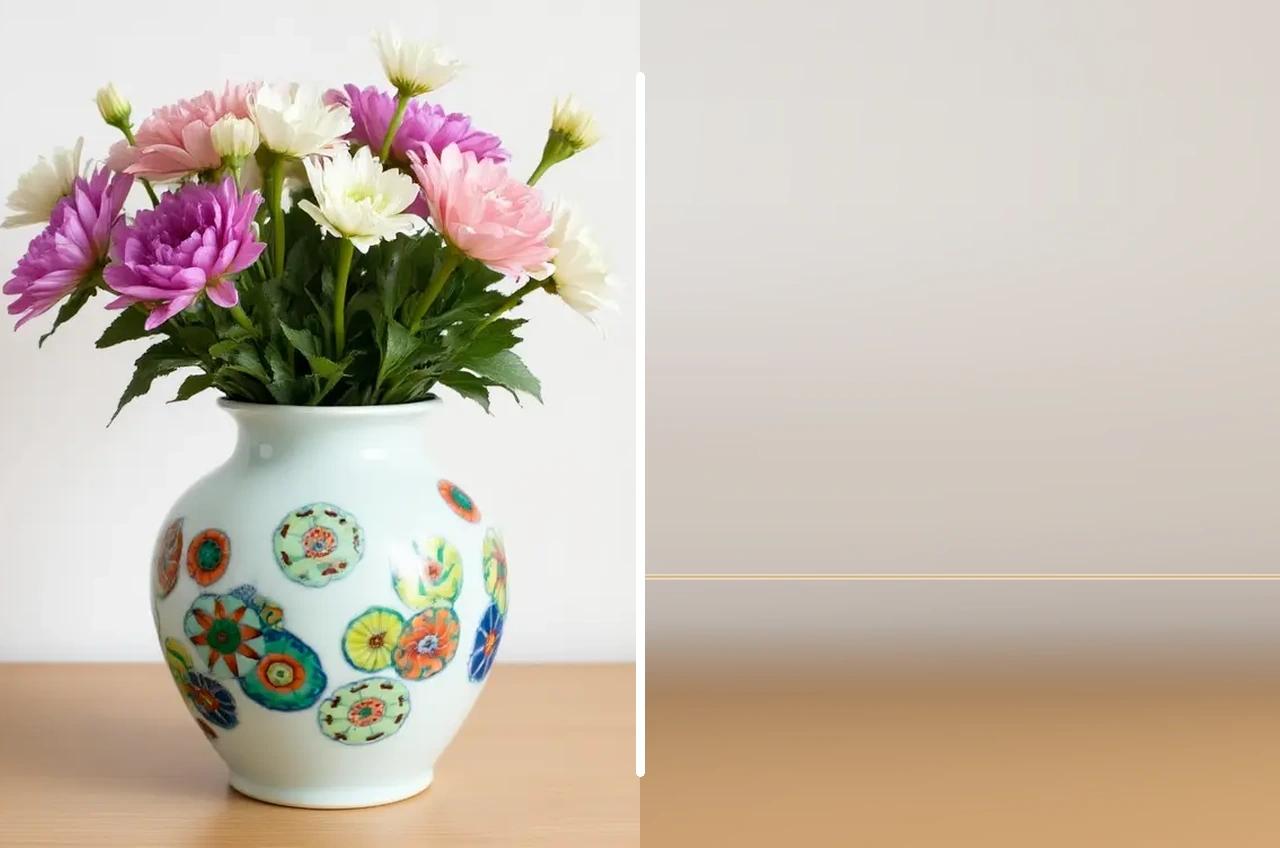
Upload a photo, describe what should disappear, and let AI object removal rebuild the background.
Upload image
Upload a photo and name the object you want removed.

Remove a vase, cable, bag, person, stain, or distracting prop without opening a heavy editor. The tool focuses on one clear removal request and returns a clean image you can download.
Remove an objectWrite the visible object in plain language, such as “flower vase on the table” or “trash bin near the door.” HubVanta sends the image and object name to ModelsLab object removal for precise inpainting.
Clean product shots before publishing a store page.
Remove small distractions from real estate and interior photos.
Fix social, blog, and ad images without rebuilding the whole scene.
The workflow uploads your image, passes the object name to the removal model, then returns a restored image preview in the browser.
Use a clear PNG, JPG, or WEBP photo where the object is visible.
Name the item to remove. Keep it specific so the model edits the right area.
Preview the cleaned result, then download the object removal output.
The workspace keeps the edit simple: one image, one object description, one high-quality generated result.
Remove unwanted objects while preserving the surrounding background.
Describe the item instead of painting a mask by hand.
Generate a natural-looking fill where the selected object used to be.
Open the result overlay and save the cleaned image.
Powered by ModelsLab interior object removal for high-resolution inpainting.
Upload, remove, preview, and download without a desktop photo editor.
Common questions before using AI object removal on your photos.
Object removal is an image editing workflow that erases a selected item from a photo and fills the missing area so the scene still looks natural.
Upload a sharp image and describe one visible object at a time. Specific phrases like “red cup on the desk” usually work better than broad requests.
Sharp photos with a visible object and enough surrounding background usually work best. Busy textures or large covered areas can be harder to rebuild.
You can describe the visible object you want removed. Results depend on image complexity, background detail, and whether the model can rebuild the covered area naturally.
The API route uses ModelsLab interior_object_removal, which accepts an uploaded image URL and an object_name instruction.
Upload a photo, describe what should disappear, and let AI object removal rebuild the background.
Remove an object