1
Upload a sketch
Use a clear drawing, line art, wireframe, scan, screenshot, or rough concept image in PNG, JPG, or WEBP format.
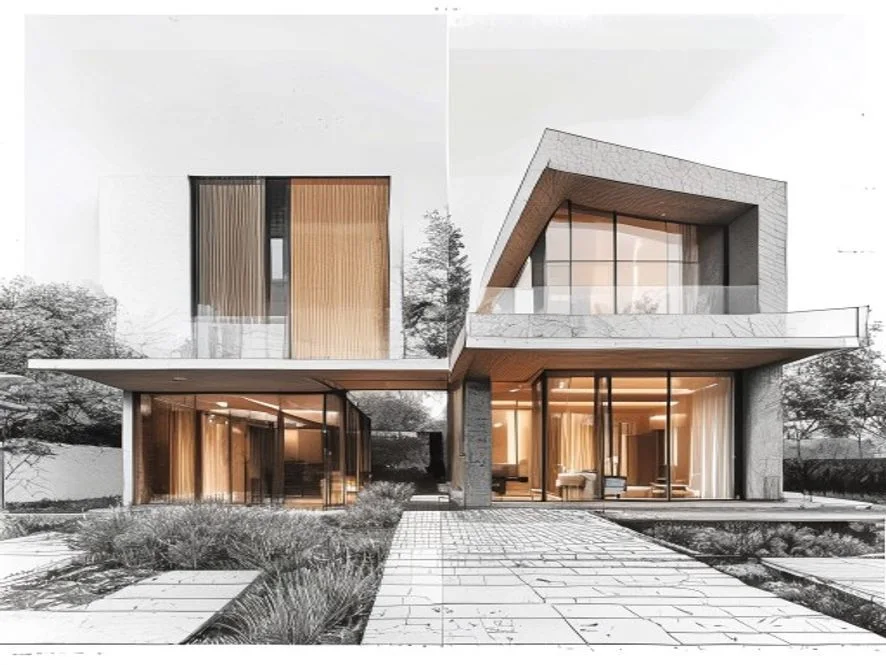
Upload an architectural sketch, product idea, interior outline, or quick design drawing and turn it into a polished AI render. Use sketch to render AI for early concepts, listing visuals, client previews, and design reviews.
Sketch image
Render steps
Upload a sketch to begin.
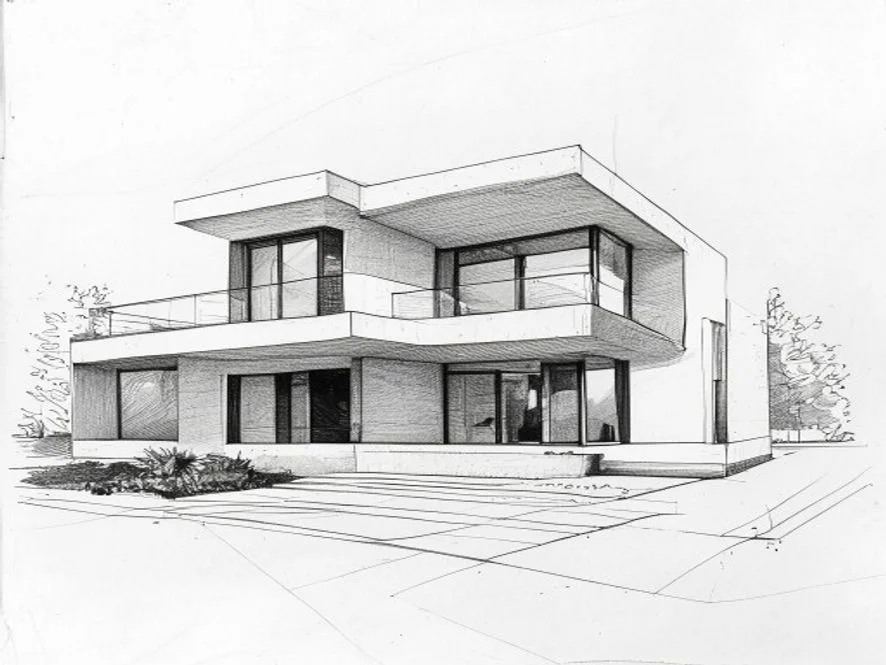
Sketch to render is most useful when the idea is clear but the presentation is not. Keep the composition from your drawing, then guide the result with material, lighting, style, and realism notes.
Render a sketchUse strength to decide whether the AI should preserve the sketch closely or reinterpret it. Add a prompt for facade materials, interior mood, landscape, product finish, or the visual direction you want.
Convert house sketches, room outlines, or facade concepts into client-ready previews.
Explore sketchup to render AI directions before a full 3D visualization pass.
Create fast design options for mood boards, ads, listings, and review decks.
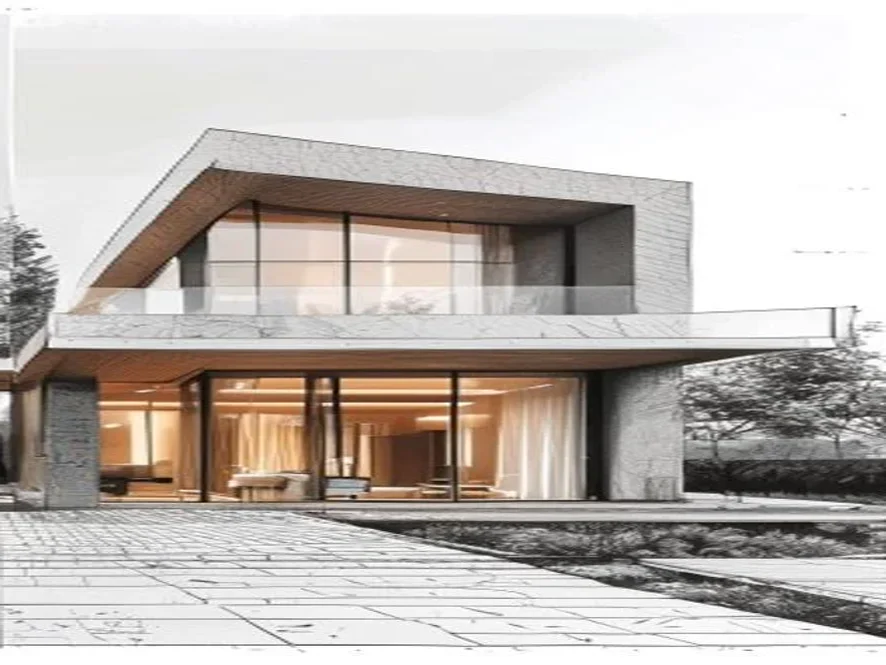
HubVanta uploads your sketch, combines it with your prompt and render controls, then asks ModelsLab sketch-renderer to return a refined image.
Use a clear drawing, line art, wireframe, scan, screenshot, or rough concept image in PNG, JPG, or WEBP format.
Add materials, room style, facade mood, camera direction, lighting, or realism notes.
Review the rendered result in the overlay, then download it for your next design pass.
The page keeps the workflow simple: one sketch, one prompt, a few render controls, and one downloadable result.
Start from a visible drawing so the generated render follows the original structure.
Describe wood, stone, glass, daylight, interior mood, or exterior landscaping in plain language.
Stay close to the sketch or let the AI resolve missing details more freely.
Tune prompt influence and denoising steps for clearer concept renders.
Compare the uploaded sketch and rendered image before downloading the output.
Upload, prompt, generate, preview, and download without opening a heavy render app.
Common questions before using AI to render sketches online.
You can open the browser workspace, upload a sketch, and review the generation flow from the form. Use the result as a concept preview before final production work.
Clear architectural sketches, interior outlines, product drawings, wireframes, and SketchUp screenshots work best. Avoid very blurry scans or drawings where the main shape is hard to read.
Yes, you can upload a SketchUp screenshot or simple 3D viewport image and prompt the tool toward a realistic render style.
No AI render is exact. Use higher strength when you want stronger structure preservation and lower strength when you want more creative interpretation.
The API route uses ModelsLab sketch-renderer, which accepts an initial image, prompt, strength, guidance scale, and inference steps.
Upload an architectural sketch, product idea, interior outline, or quick design drawing and turn it into a polished AI render. Use sketch to render AI for early concepts, listing visuals, client previews, and design reviews.
Render a sketch